Import subscriptions from another app
If you’re switching to Curobi from another subscription app, this tutorial walks through moving your existing subscribers over without asking them to re-subscribe.
Available on the Business and Pro plans. See Pricing & Plans. Background reading: Import & Migration.
1. Export from your current app
Export your active subscriptions to CSV from wherever they currently live. At minimum you’ll want each row to include:
- The customer (email or Shopify customer ID)
- The product/variant
- Billing frequency
- Current price / discount
- Next billing date
- A stable external ID from the source system (used to prevent duplicate imports)
Exact column names vary by source app — the importer isn’t tied to one specific competitor’s export format.
2. Set up matching plans first
Before importing, make sure a Curobi subscription plan exists for each frequency/discount combination your import will need. The importer maps each row to an existing plan — it won’t create new plans for you.
3. Run a dry run
-
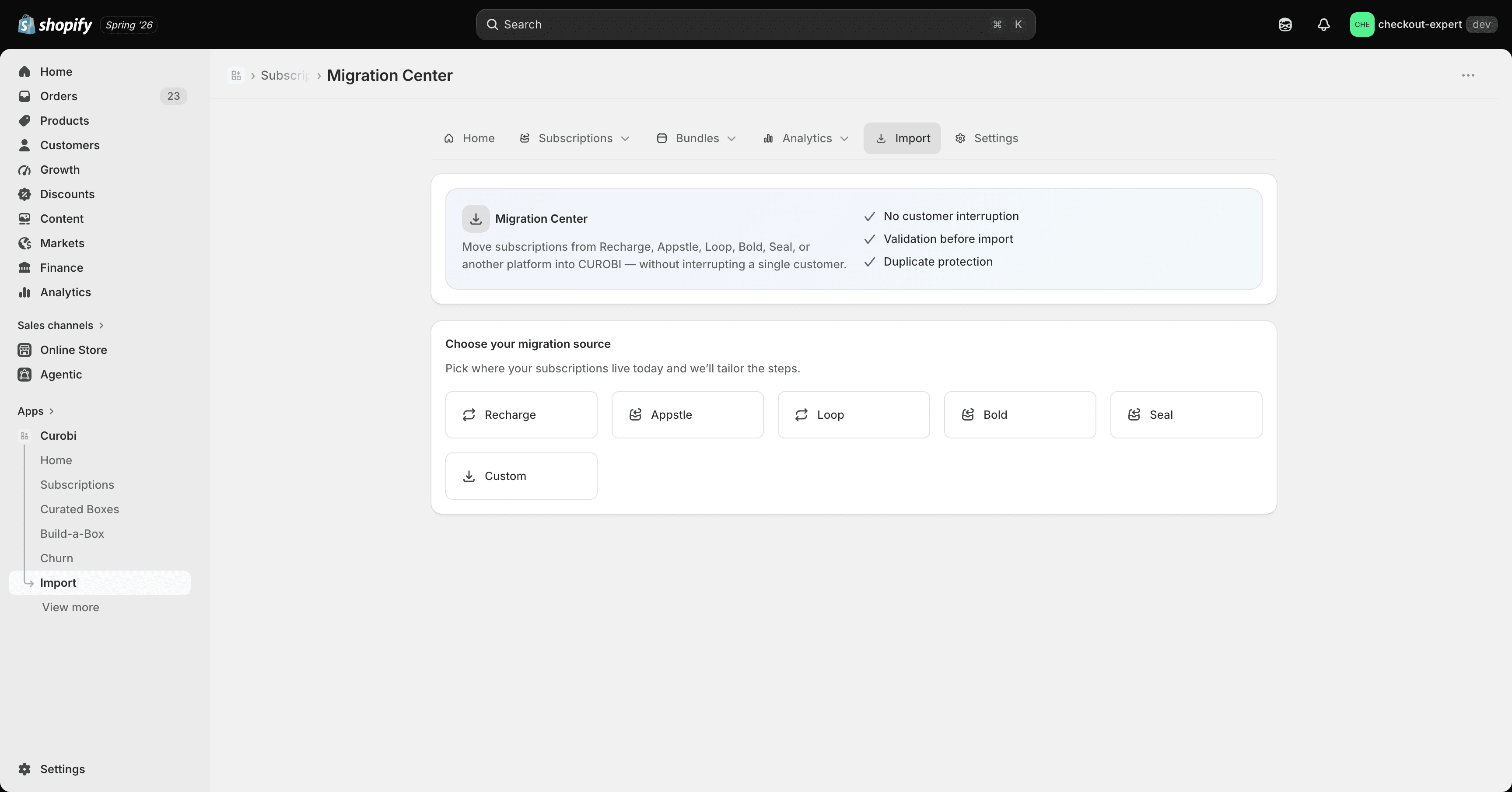
Open the Import tab in the Curobi admin and choose to import / migrate subscriptions.
-
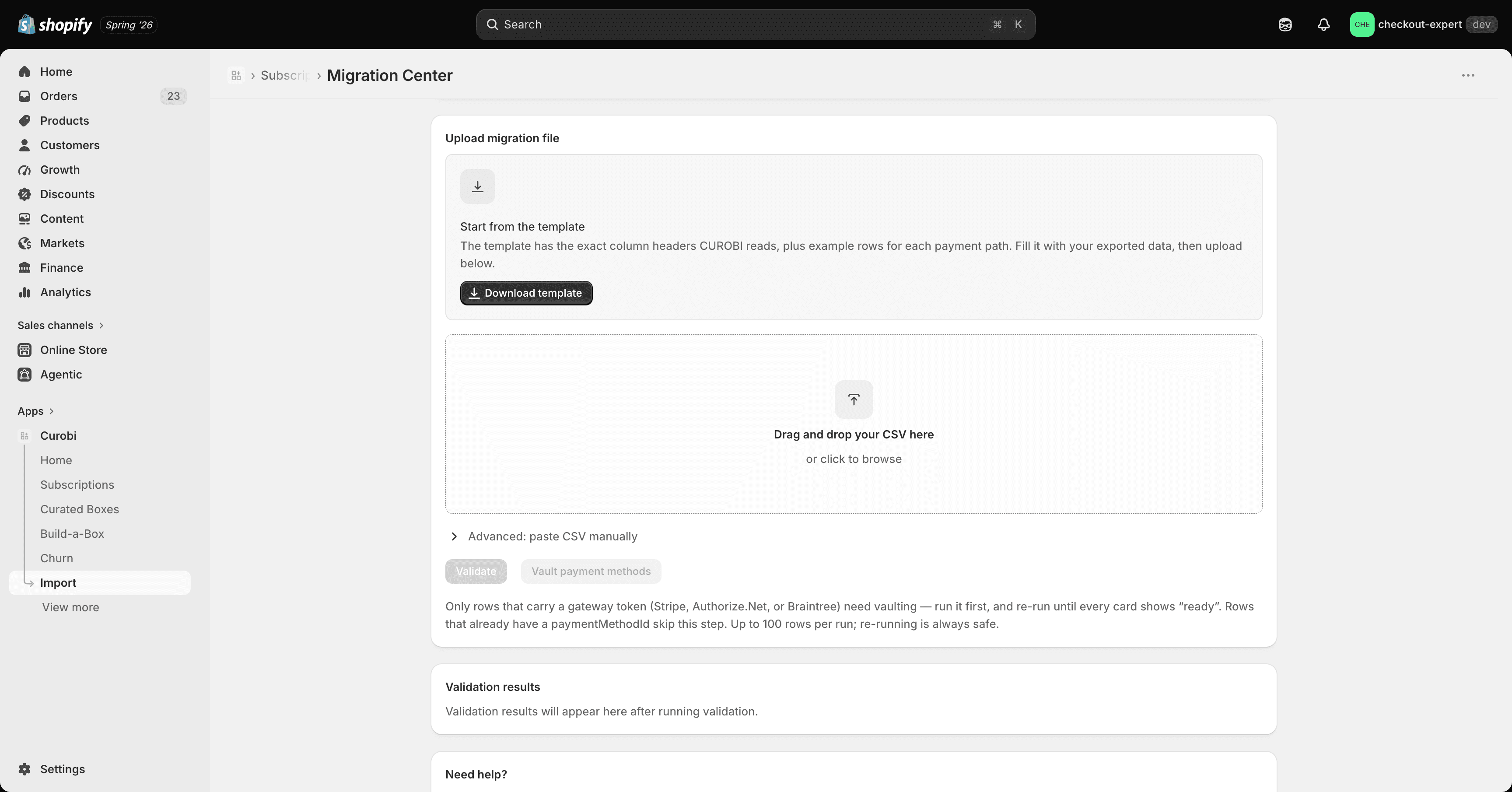
Download the sample CSV to see the exact expected columns, then upload your prepared file.
-
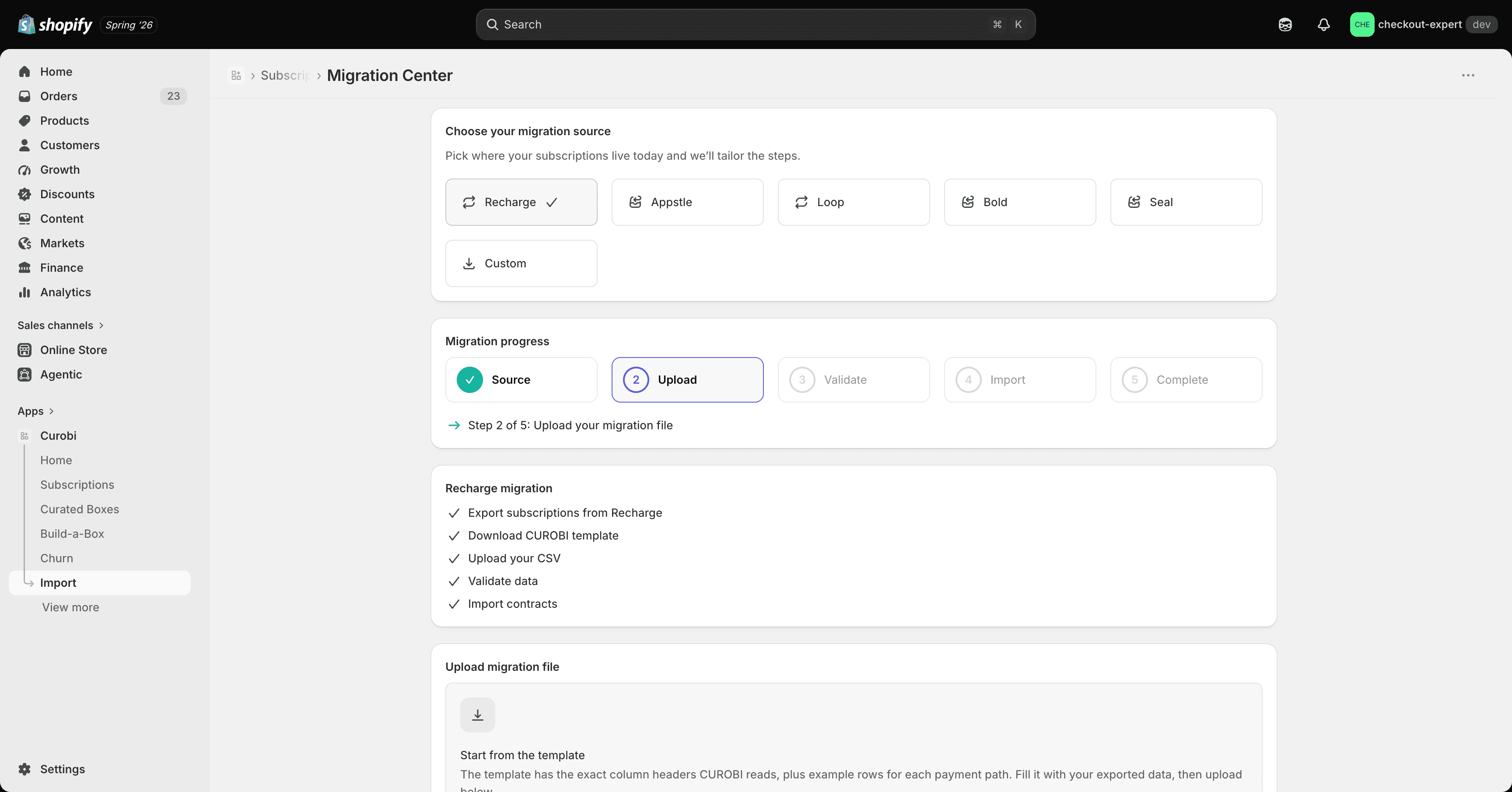
Curobi validates every row without creating anything yet — you’ll see which rows will succeed and which have problems (unmatched product, invalid frequency, missing customer, etc.).
-
Fix your CSV and re-upload if there are errors, or proceed if the dry run looks clean.
4. Commit the import
- Once the dry run is clean, click Import to commit.
- Curobi creates a real Shopify subscription contract for each row via Shopify’s own contract-creation API — these are genuine subscriptions, not a look-alike Curobi-only record.
- Re-running the same file is safe — imports are deduplicated on the combination of your store and each row’s external ID, so nothing gets created twice.
5. Verify
- Spot-check a handful of imported subscriptions in Subscriptions — confirm frequency, price, and next billing date match the source.
- Confirm the customer sees the subscription in their Manage subscriptions portal.
- Let the first post-import billing cycle run and confirm it charges correctly before fully decommissioning your old subscription app.
Protected Customer Data approval (a Shopify-side review) is required before this can run against real customer data on a live store — development stores work without it while you’re testing the process.