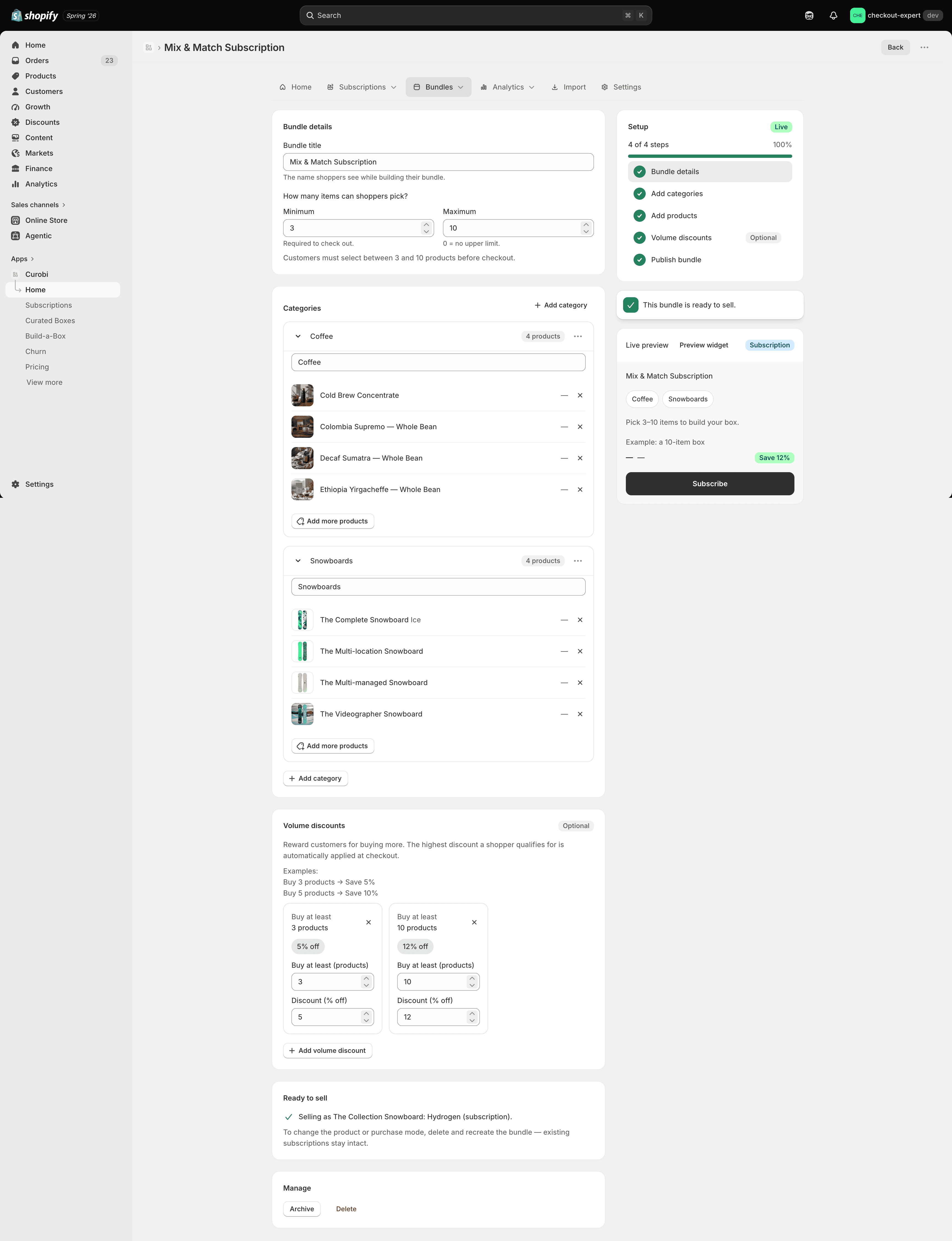
Mix & Match
Mix & Match is a quantity-break “pick-your-own” bundle. Customers assemble a selection from categories you define, and the price is the sum of the items they pick, minus a volume discount that grows as they add more — “buy more, save more.” It’s a distinct average-order-value lever that sits alongside the box programs.
Available on the Business and Pro plans. If you move to a plan below Business, existing bundles keep selling at their current prices, but you can’t edit them. See Pricing & Plans.
How it’s different from the box programs
| How pricing works | |
|---|---|
| Curated / Build-a-Box | A fixed box price; components ship as $0 component lines. |
| Mix & Match | Dynamic — price = Σ(selected item prices) − the quantity-tier discount. |
The discount is applied at checkout by a Shopify discount function, so the quantity break is real Shopify pricing (not a display-only estimate) and works for both one-time and subscription purchases. Because Mix & Match lines are real product lines, the customer portal can edit them (quantity, replace, skip) with no special handling.
Replacing items in the portal
A subscriber opens Replace items on the bundle’s card, then Replace item on the line they want to change. The replacement choices are limited to the bundle’s current catalog — the items you’ve assigned to its categories right now — and the choice is checked again when it’s saved, so a product you’ve since removed from the bundle can’t slip back in. The change applies immediately.
Replacement needs the subscription to be active, and Swap product must be left on in Settings → Portal actions. Swapping one line is safe here because each pick is a real priced line; the box programs work differently — see Customer portal → Replacing products.
The Mix & Match dashboard
Mix & Match bundles have their own Mix & Match entry in the nav. The list shows each bundle and its status.
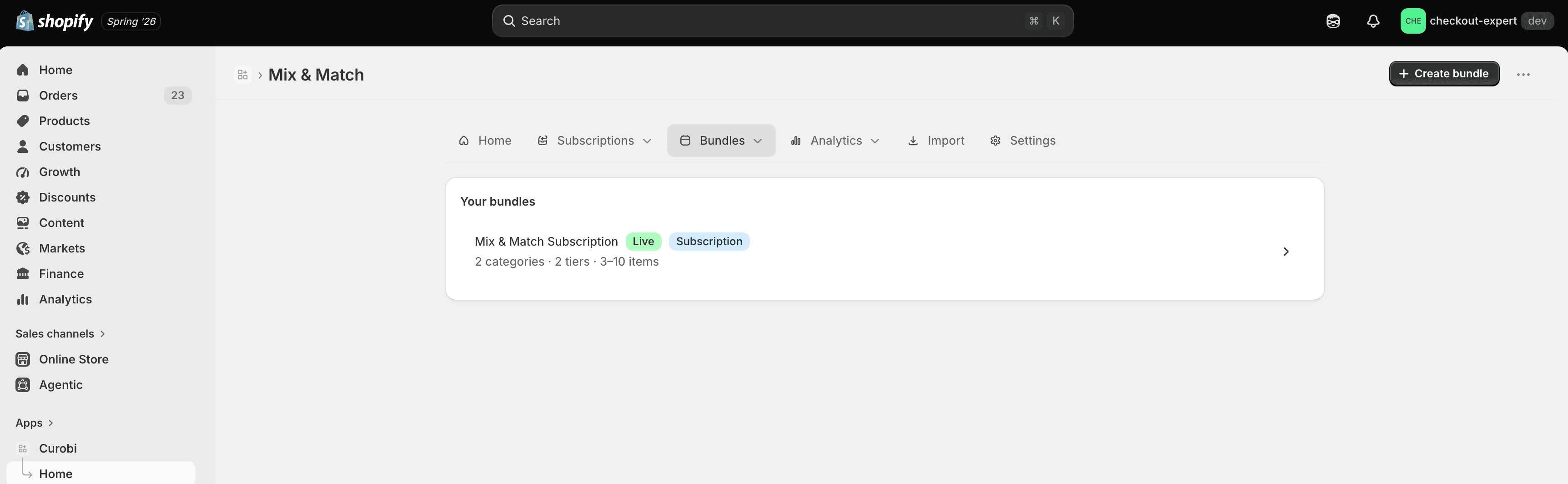
Create a Mix & Match bundle
Click Create and give the bundle a name.
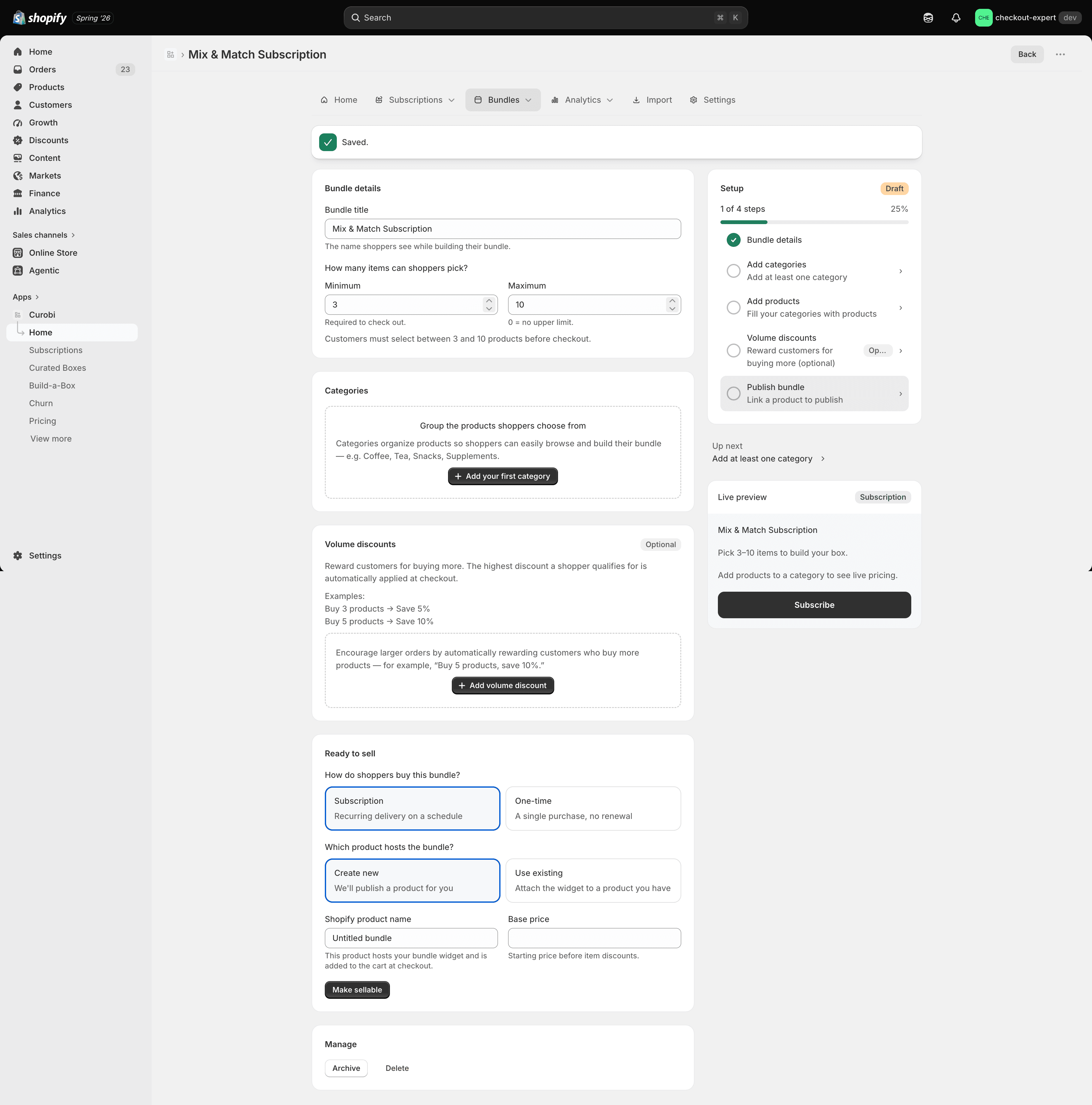
Add categories
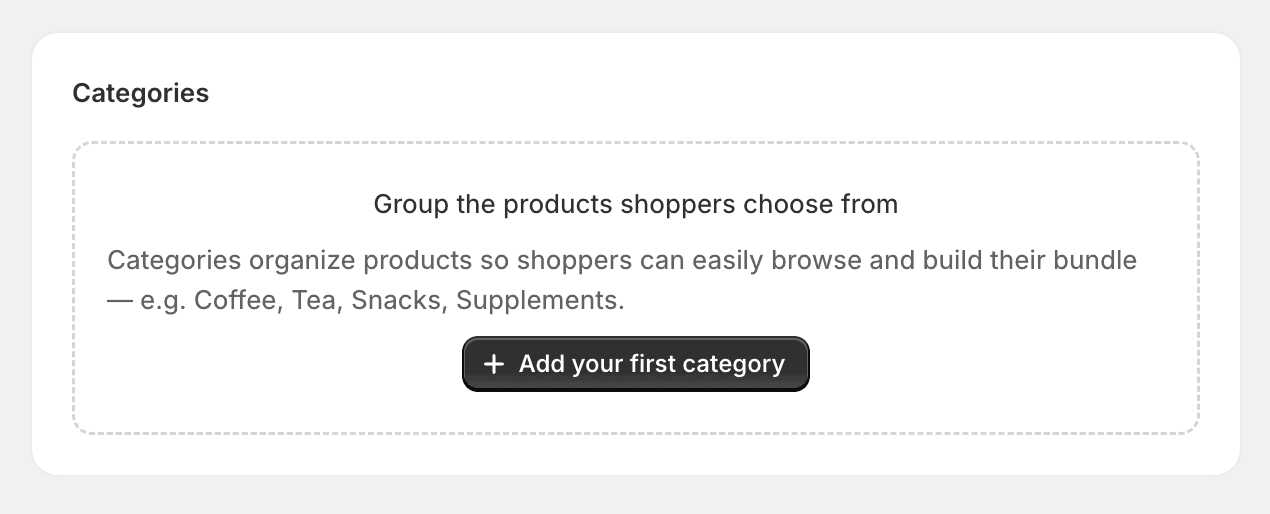
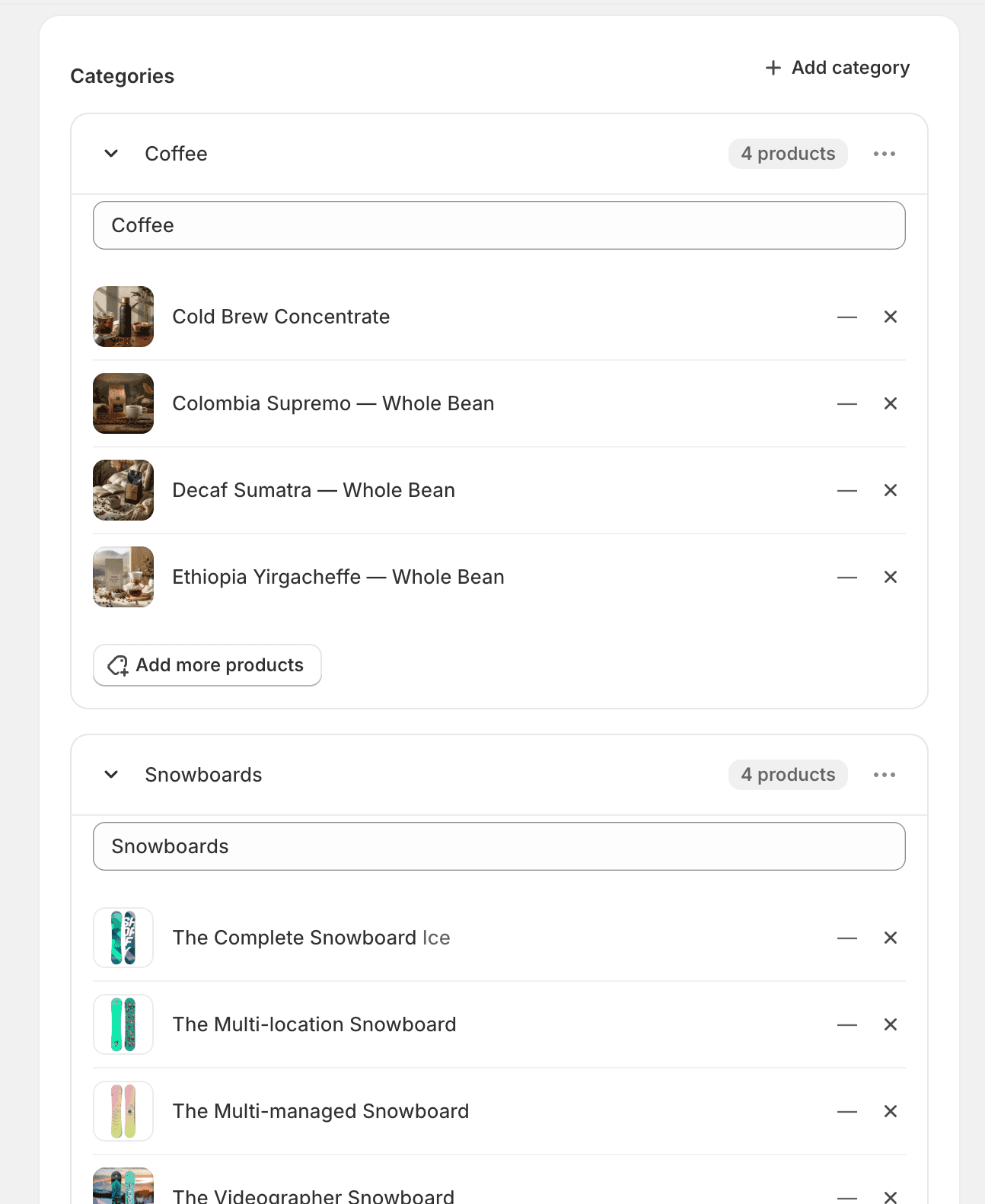
Mix & Match uses app-defined custom categories (not Shopify collections) to group what customers can pick from — for example “Coffee,” “Snacks,” “Add-ons.” Add the categories the bundle should offer.
Assign products to categories
Assign products and variants into each category. A bundle can span multiple categories, each with its own set of products.
Add volume discount tiers
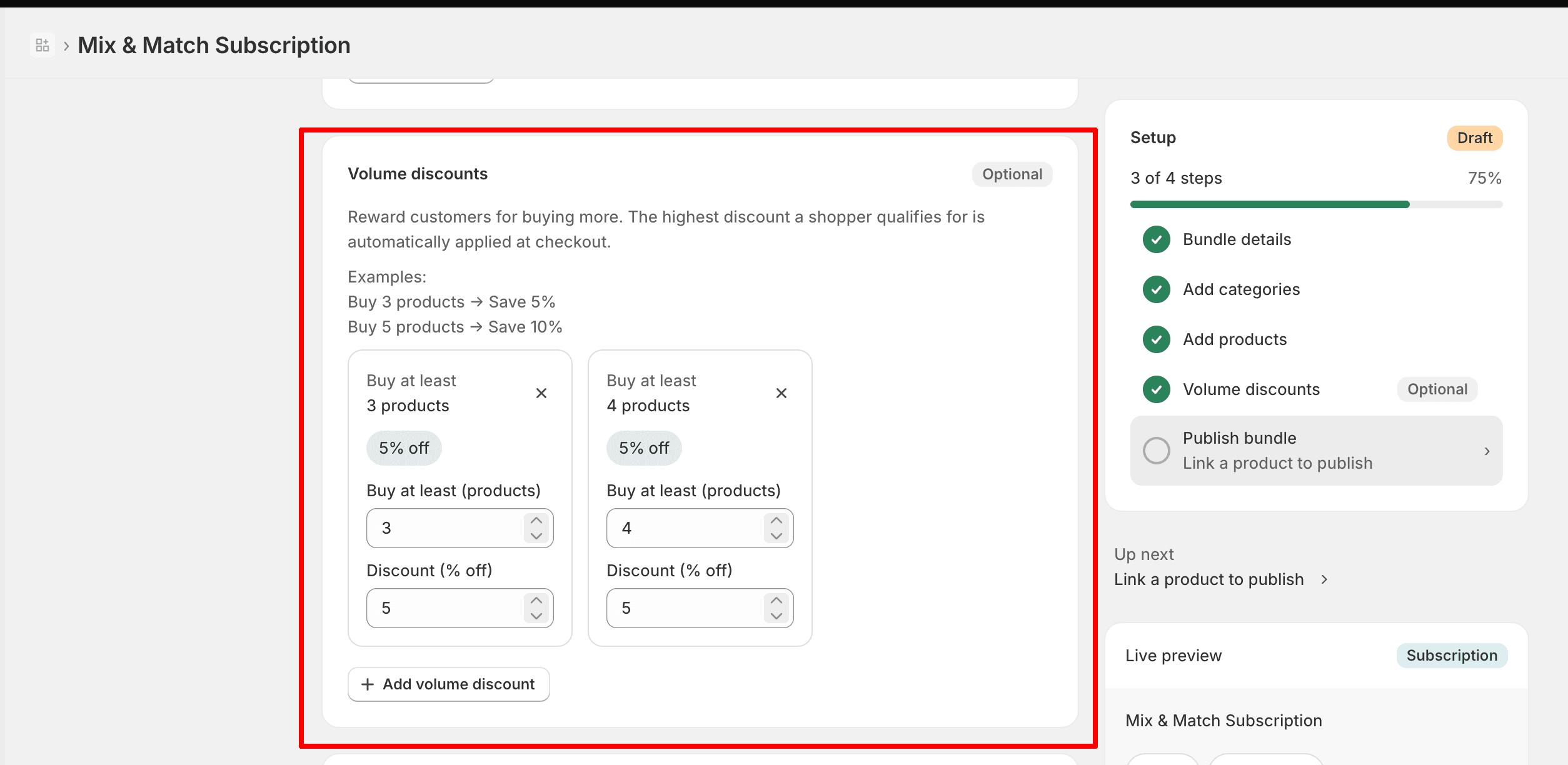
Define the quantity breaks — the more items a customer picks, the higher the discount. For example: 3 items → 5% off, 5 items → 8% off, 8 items → 12% off. These tiers drive the discount function that reprices the cart at checkout.
Choose subscription and/or one-time
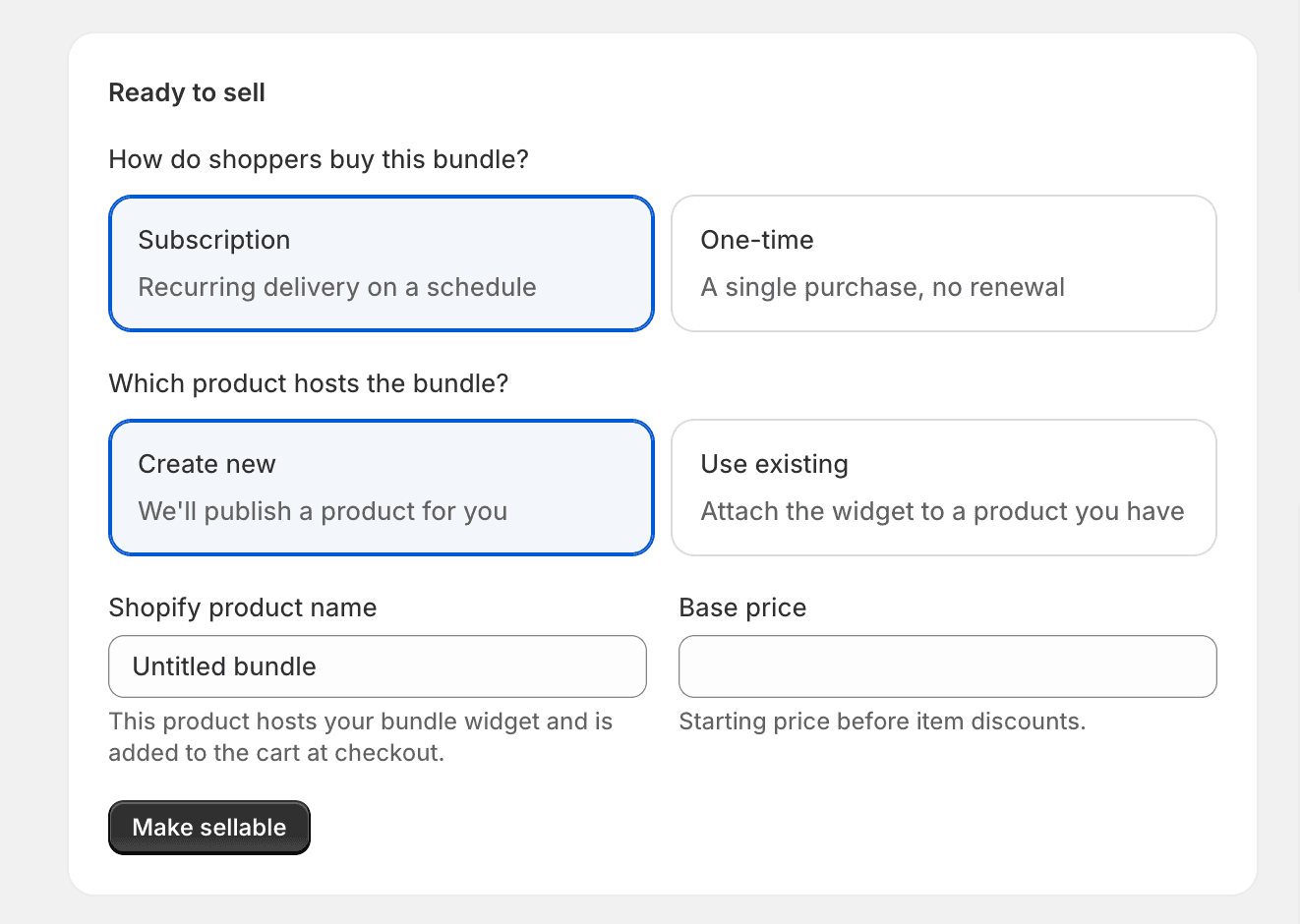
Choose whether the bundle is available as a subscription, a one-time purchase, or both — just like the other purchase modes.
Publish
Publish the bundle to make its storefront widget live on the box product’s page.