Customer notifications
Curobi sends branded transactional and lifecycle emails on your behalf whenever something happens on a subscription — without you having to configure a separate email tool.
What triggers an email
- Subscription created (confirmation)
- Payment failed (update-your-payment-method prompt)
- Payment recovered
- Subscription paused, cancelled, or reactivated
- Payment method updated
- Upcoming charge reminder, sent a few days before a renewal
- An optional charge receipt (opt-in)
Every one of these goes through a single, consistent send pipeline — preferences, then your branding, then the right template, so what a customer receives always matches what you’ve configured, regardless of which event triggered it.
Branding
In Settings → Emails → Email branding, set your logo, colors, and from-name. Every email uses these — customers should never see an unbranded, generic-looking system email from Curobi.
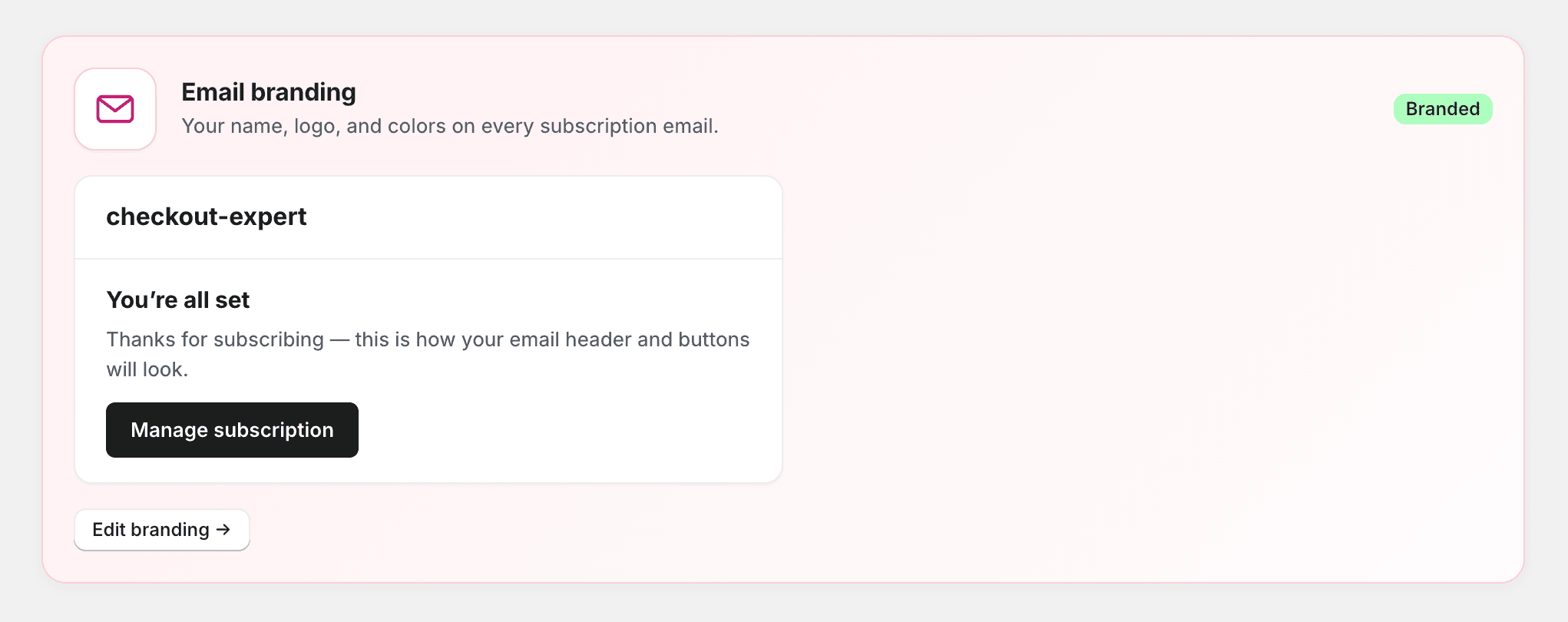
You can also turn each email type on or off independently in Settings → Emails → Customer emails, in case you’d rather handle certain lifecycle moments (like receipts) through your existing tools.
Where the Manage link goes
The Manage subscription button in these emails opens the customer’s account page, or your branded portal while that’s on. To send customers somewhere else, fill in Portal page URL in Email branding: your link wins over both. It changes Curobi’s emails only; the manage link Curobi sends to Klaviyo doesn’t read it.
Letting Klaviyo send an email instead
If you’ve connected Klaviyo (every plan), you can hand any of these emails to a Klaviyo flow, except the failed-payment email: confirmation, upcoming charge reminder, charge receipt, payment recovered, payment method updated, paused, cancelled and reactivated. Curobi then stops sending its own copy, so customers don’t get two. You do this from Who emails your customers on Curobi’s Klaviyo page, one email at a time.
In Settings → Emails → Customer emails, an email you’ve handed over says your Klaviyo flow sends it, so you can always tell which emails come from where.
Hand an email over rather than switching it off. Both stop Curobi’s copy, but a switch in Settings stays off if Klaviyo is ever disconnected, leaving customers with no email from anyone. A handoff ends with the connection: if Klaviyo is disconnected, Curobi goes back to sending the email on its own. Changing your Curobi plan doesn’t end it, because Klaviyo is on every plan.
The failed-payment email always sends. It’s Shopify’s secure card-update email, and it carries the only link that lets a customer update their card. See Let Klaviyo send an email instead of Curobi.
Customer opt-outs
Customers can opt out of individual email categories from an “Email preferences” screen inside their portal. Billing- and account-critical mail (like a payment-method update prompt) is always on, since turning it off would leave a customer’s subscription silently failing with no way to fix it.
Notification center
The Customer emails page (under Retention in the Curobi admin) gives you:
- Full delivery history, filterable by status and type.
- A delivery funnel (sent → delivered → opened → clicked → bounced/complained).
- Per-message detail, including a resend button.
The delivery history and basic funnel are available on every plan. The full deliverability analytics — open/click rates and spam-complaint rate — need the Growth plan or above. See Pricing & Plans.
Customers also get a lightweight, read-only “Recent emails” feed inside their own portal, so they can confirm what’s already been sent to them.
Walkthrough
See Set up branded email notifications for a step-by-step setup guide, and Connect Klaviyo and build your first flow to move an email to Klaviyo.